Feb 222026
 
Missing Ghost Icons with Omnissa DEM and Windows 11 AppX Packages

When deploying Windows 11 with Omnissa Dynamic Environment Manager (Omnissa DEM) you may experience blank, missing, or ghost icons when pinning AppX packages to the Taskbar, such as Calculator, the Snip tool, or other AppX packages.

AppX packages are a newer style software package commonly used with Windows 8, Windows 10, and Windows 11. In newer feature releases of Windows 11, we are seeing these AppX packages replacing common applications such as Calculator, Paint, the Snip tool, and Windows Terminal from the traditional command prompt.

These new AppX packages are deployed to the Windows install as AppX Provisioned Packages, which then get provisioned to the user space when the user profile is created.

The Problem

When using Omnissa Dynamic Environment Manager (formerly known as VMware Dynamic Environment Manager), with non-persistent VDI, every time a user logs in they get a new profile, which DEM then imports their user settings which can include AppData, files, registry, and other settings that create the appearance of profile persistence.

What Omnissa DEM is actually doing is called “User Settings Persistence”.

Because a new profile is created at each log in, the AppX packages deployed in to userspace do not persist, and must be provisioned on every login. Because of this process, if a user has AppX packages pinned to their taskbar, the icon is not available, therefore resulting in a blank icon.
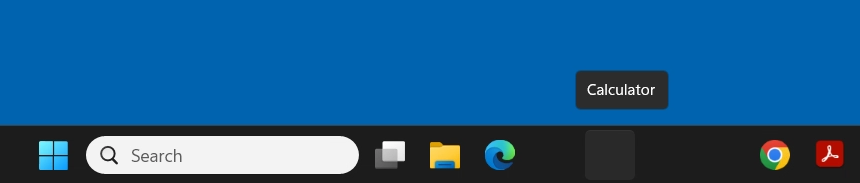
Missing ghost icons with AppX packages on Windows 11 with Omnissa DEM

This is not ideal.

The Fix

To resolve this issue, when prepping your gold image and snapshot for deployment, after you complete “Finalization” with the OSOT tool, you’ll need to create a folder in the default user profile.

Please Note: You must have all the appropriate DEM configuration files deployed for Windows 11 (including Start Menu, Explorer, Taskbar, etc).

To resolve this issue, post-finalization, create the “WindowsApps” folder inside of “C:\Users\Default\AppData\Local\Microsoft\” as seen below:
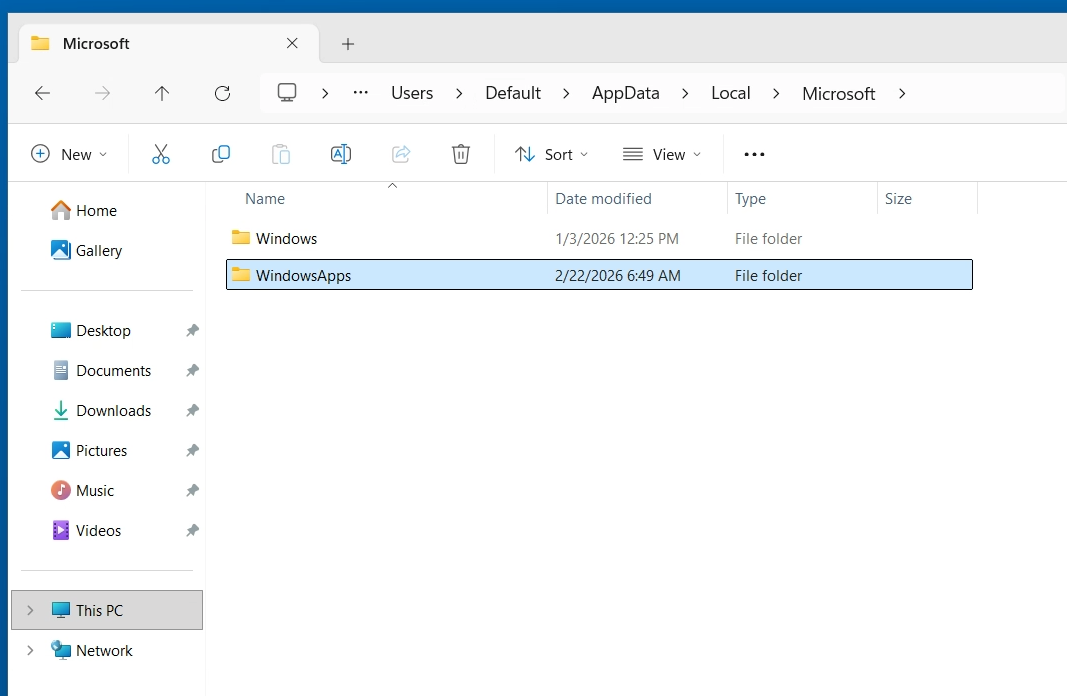
Screenshot adding "WindowsApps" folder to the Default User AppData for AppX icon fix

After creating this folder, continue to shutdown your image, snapshot, and push to a Desktop Pool on Omnissa Horizon.

You’ll now notice:

  1. On user logins, all AppX packages will be immediately visible in the start menu, whereas previously there was a 1-2 minute delay where they would need to be fully provisioned before appearing. You may now notice that ~30 seconds after login, a quick flash of a progress bar will appear, this is Windows provisioning these packages.
  2. Your pinned AppX package shortcuts on your taskbar will now appear properly, with their applicable icon on subsequent future logins.

I’m speculating that the OSOT tool removes this folder, which delays/removes the linking of AppX packages in new profiles. The steps above corrects this.

A big thank you to “HER_MUN” and Sunil Nair on the Omnissa Community Forums, who helped figure this out:

A big thanks also goes to Daniel Keer for spending 4 hours working through this with me!
Oct 032025
 
What’s the deal with TPMs, vTPMs, vSphere NKP, and VDI?

In this video, I sit down and chat with Joe Cooper to find out “What’s the deal with TPMs, vTPMs, vSphere NKP, and VDI?”

We’ll be talking about everything from Physical TPMs, to Virtual TPM (vTPM), VMware vSphere Native Key Provider (NKP), and specialized workloads such as Virtual Desktop Infrastructure (VDI).

A big thank you to Joe Cooper for co-producing and joining me on this video.

Guest: Joe Cooper (Omnissa)

In this video, we’ll cover:

  • What is a TPM, and what is a vTPM?
  • How does VMware vSphere and the Native Key Provider (NKP) play in to this?
  • Do TPM and vTPMs have any correlation on their own, or with NKP?
  • How are TPMs handled with environments like VDI?

References:

Stephen Wagner: How to create a VDI Windows 11 Gold Image with proper vTPM for Omnissa Horizon

Broadcom: Deploy Windows 11 in virtual machine using bootable Windows PE (WinPE) Image

Omnissa: Manually creating optimized Windows images for Horizon VMs

Stephen Wagner: Create and Deploy Virtual Machines with vTPM and NKP on VMware vsphere

THEDXT: VMware vCenter Native Key Provider

Sep 292025
 
How to create a VDI Windows 11 Gold Image with proper vTPM for Omnissa Horizon

In this video, I’ll show you how to properly create a Windows 11 gold image, for use with Omnissa Horizon VDI (both persistent VM template full-clones, and non-persistent Instant Clones).

We’ll be using the manual process to create the VDI Golden Image.

In this video, I’ll show you how to:

  • Use Windows ADK and WinPE add-on to create a WinPE ISO to pre-boot the Windows 11 Installer
  • Use the WinPE ISO to pre-boot and install Windows 11, without a vTPM
  • Prepare the Windows 11 image for deployment
    • Install Omnissa Horizon agent
    • Install Microsoft 365 using the ODT (Office Deployment Toolkit)
  • Use the Omnissa Operating System Optimization Tool (OSOT)
    • Optimize the image using OSOT
    • Generalize the image using OSOT
    • Finalize the image using OSOT

Note on VDI (Virtual Desktop Infrastrucutre), TPM and vTPM devices

When deploying Windows 11 in VDI environments there are special considerations due to Windows 11 TPM requirements. Windows 11 Golden images should not have a vTPM, nor should they ever have a vTPM attached and then removed. Attaching and removing a vTPM or TPM from Windows 11 is considered data loss, and can cause issues with the image.

If you are deploying persistent full-clones, after the cloning process you can add a vTPM to the persistent VM.

If you are deploying non-persistent Instant Clones, the desktop pool in Horizon should be configured to add a vTPM to Instant Clones on provisioning.

References

A big thank you goes out to Graeme Gordon and Hilko Lantinga for their documentation and techzone articles providing this information for Partners, Customers, and Community!

Refernced Links and Documents:

Sep 242025
 
Update Omnissa Unified Access Gateway Network Configuration via SSH or Console

So you’re in a situation where you need to update the Omnissa UAG IP Configuration via Shell or Console.

Your Omnissa UAG (Unified Access Gateway) network configuration usually takes place on deployment, or can be modified via the Web Admin interface running on port 9443.

In some scenarios you may lose access, or have to change the networking configuration when you don’t have access to the web administration GUI. This could be because of firewall rules, network changes, or troubleshooting.

PLEASE NOTE: Normally it is considered best practice to deploy new UAGs if an IP change is required. UAG deployment should be automated (using the powershell scripts from Omnissa). This post is for informational purposes only for special situations, troubleshooting, or in scenarios where deploying a new UAG, isn’t possible.

Updating your UAG IP Network Configuration

If you need to update or change your network configuration on your UAG, via console or SSH, you can run the following command:

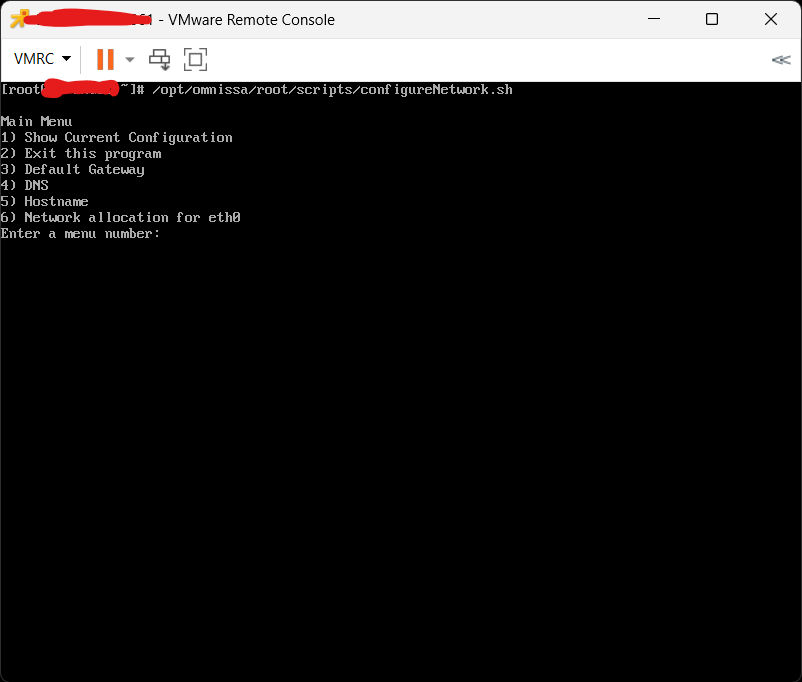
/opt/omnissa/root/scripts/scripts/configureNetwork.sh

After executing this command, you’ll be presented with these options:

You can note numerous options for network configuration of the UAG appliance.

You can then select option “1” to view your configuration, or option “6” to configure your IP, subnet, gateway, etc.

Aug 162024
 

Recently, new deployments of Windows 11 (23H2 images with the latest updates) have changed the behavior of the start menu and introduced the Windows 11 Microsoft Account Center.

This also effects 24H2, however 24H2 isn’t supported on Omnissa Horizon as of yet (to my knowledge) and probably most other VDI platforms, but this will be a concern once support is available.

The introduction of the Microsoft Account Center in the Windows Start Menu will become an issue for VDI deployments, as it changes the behavior of the Start Menu, and introduces some complexities for logging off users as well as introducing the need for training or alternative methods for users to log off.

Update – October 27 2024

When completing the latest Windows Updates, as of October 27th, 2024, the behavior has now changed.

The new behavior is now suitable for easy logoffs.

Behavior

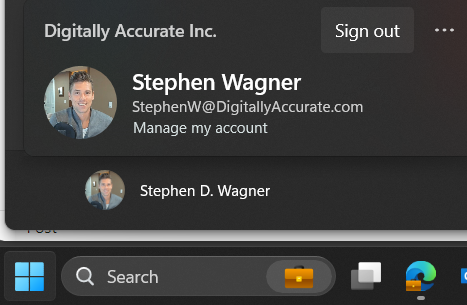
When clicking on Start and proceeding to click on the user name, users are no longer prompted with options like “Sign out, Switch User, Account Settings”. Users are now presented with the new “Microsoft Account Center”, which on non-VDI deployments provides actions for the Microsoft Account. Optimizing your image may slightly change the behavior of the Microsoft Account Center.

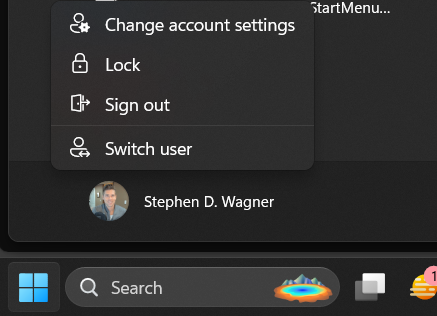
Here is an example of the original start menu:

Screenshot of the traditional Windows 11 start menu with user icon.

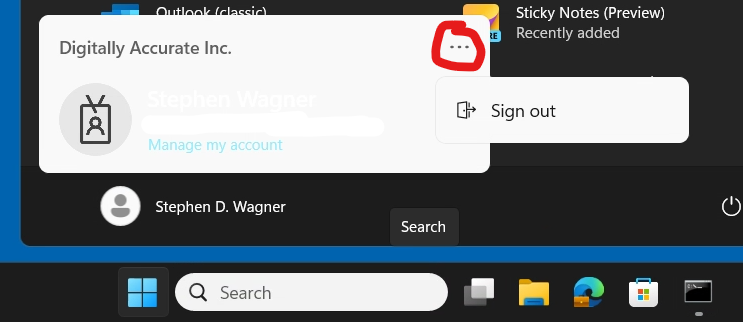
Here is an example of the new start menu with the new Microsoft Account Center:

Screenshot of new Microsoft Account Center on Windows 11 Start Menu

Users, who are expecting to be able to sign out, will not have to click on the “…” on the top right.

Additional Considerations

In addition to the examples provided above, the following behaviors can be expected:

  • On the base image, clicking the user icon will do nothing (and may possibly kill the start menu)
  • In deployments with Hybrid domain joined Instant Clones
    • If the machine hasn’t achieved Hybrid Domain Join, clicking the user account icon will function.
    • If the machine has Hybrid domain joined but a PRT has not been issued, click the user account icon will kill the start menu.
    • If the machine has Hybrid domain joined and a PRT has been issued, it will perform properly using the new style.
  • In deployments with Hybrid Domain Joining and PRT disabled, the new “Microsoft Account Center” from the user icon, should function properly with the new style.

As of today, I haven’t seen the latest Windows Updates change older base images, but I haven’t had the opportunity to sample a large enough number of environments. If this occurs, you may need to brief users on how to log out using the new “Microsoft Account Center”, using the “Log Off” function on the Horizon Client, or possibly even create a desktop shortcut for the users.

Workaround

To workaround this issue, you may need to train users on the new behaviour, advise them to Log off with the VMware Horizon client (proper logoff, not just clicking the “X” which will only disconnect sessions), or create a “Log off” shortcut on their desktop.

I will continue to investigate and update this post, hopefully ultimately with a fix.

I have created a thread on the Omnissa Community Forums, Windows 11 23H2 – Start Menu, Account Icon Behavior Warning.