Jul 262026
 

Recently I connected an NVIDIA RTX4500 Blackwell Server Edition Datacenter GPU on the Minisforum MS-A2 mini computer (aka homelab server) running VMware vSphere and NVIDIA vGPU.

As a proof of concept, I wanted to share how I did this, what parts I used, and share my success running NVIDIA vGPU.

This PoC can be used to run VDI workloads (example Omnissa Horizon), and/or AI models.

Minisforum MS-A2

As an introduction, the Minisforum MS-A2 is a mini-computer that packs a punch. The ones I purchased have the following specs:

  • AMD Ryzen 9 9955HX Processor
  • 128GB of RAM
  • M.2/U.2 NVME Support (plenty of M.2 slots)
  • Dual 10Gbps SFP+ NIC (supports VMware vSphere)
  • Built-in PCIe x16 slot that supports bifurcation
  • Numerous other goodies that I’m not listing

These have performed well in my homelab, and run VMware vSphere reliably.

Note that my preference for the MS-A2 systems is because they are running the AMD processor which handles VMware ESX without modification or disablement of cores which is required on some Intel newer generation systems.
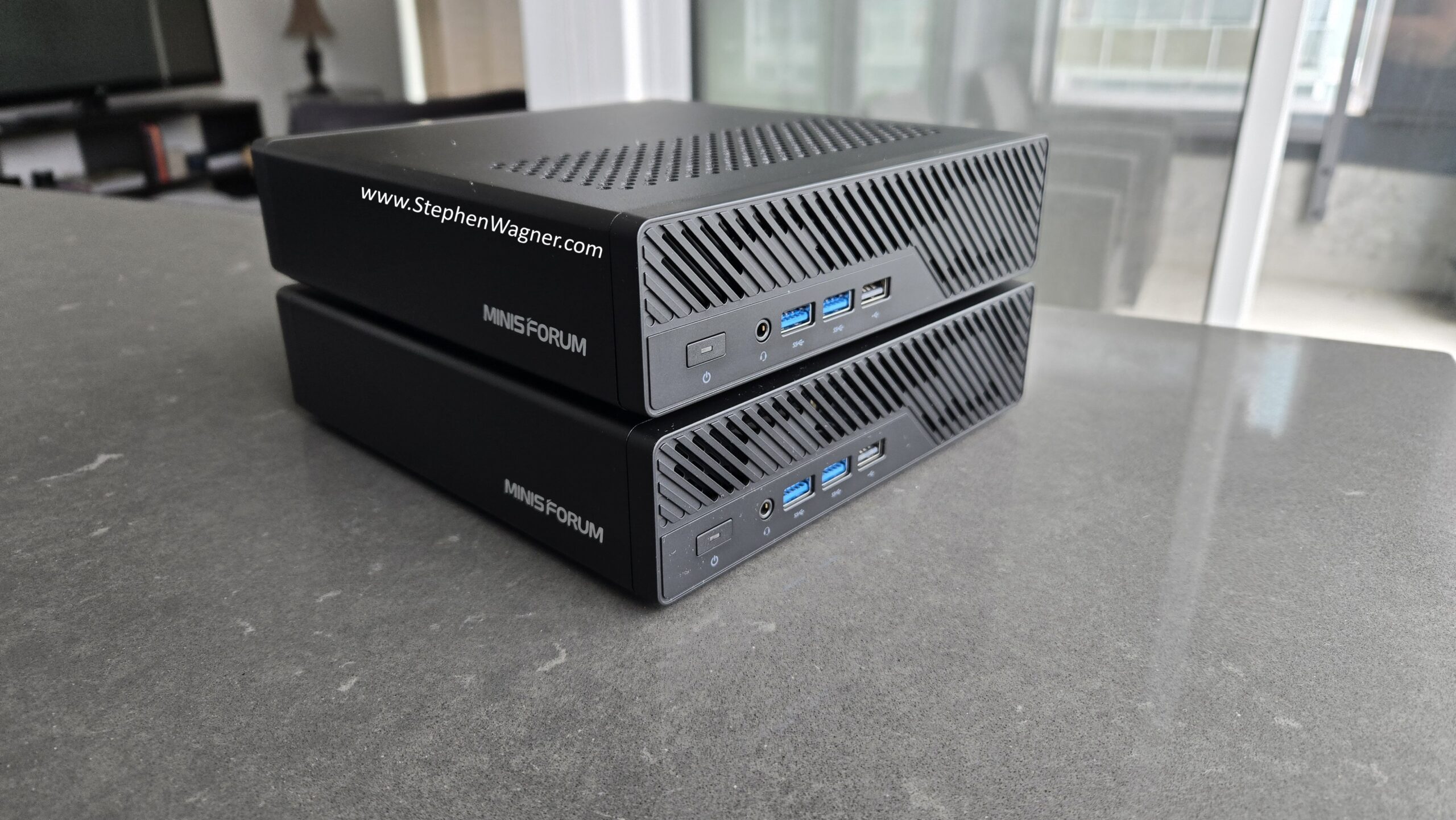
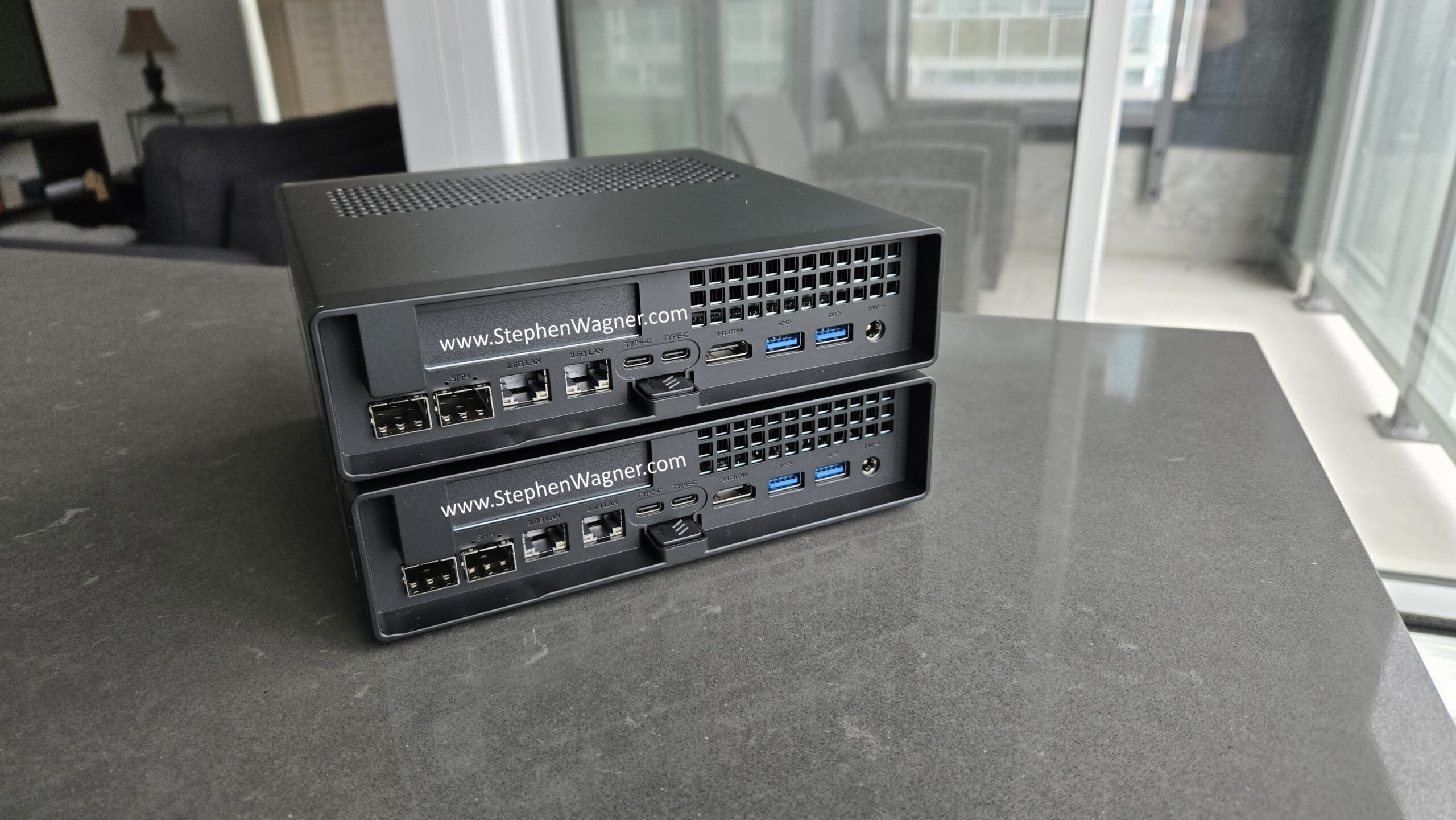
Installing VMware ESX was simple.
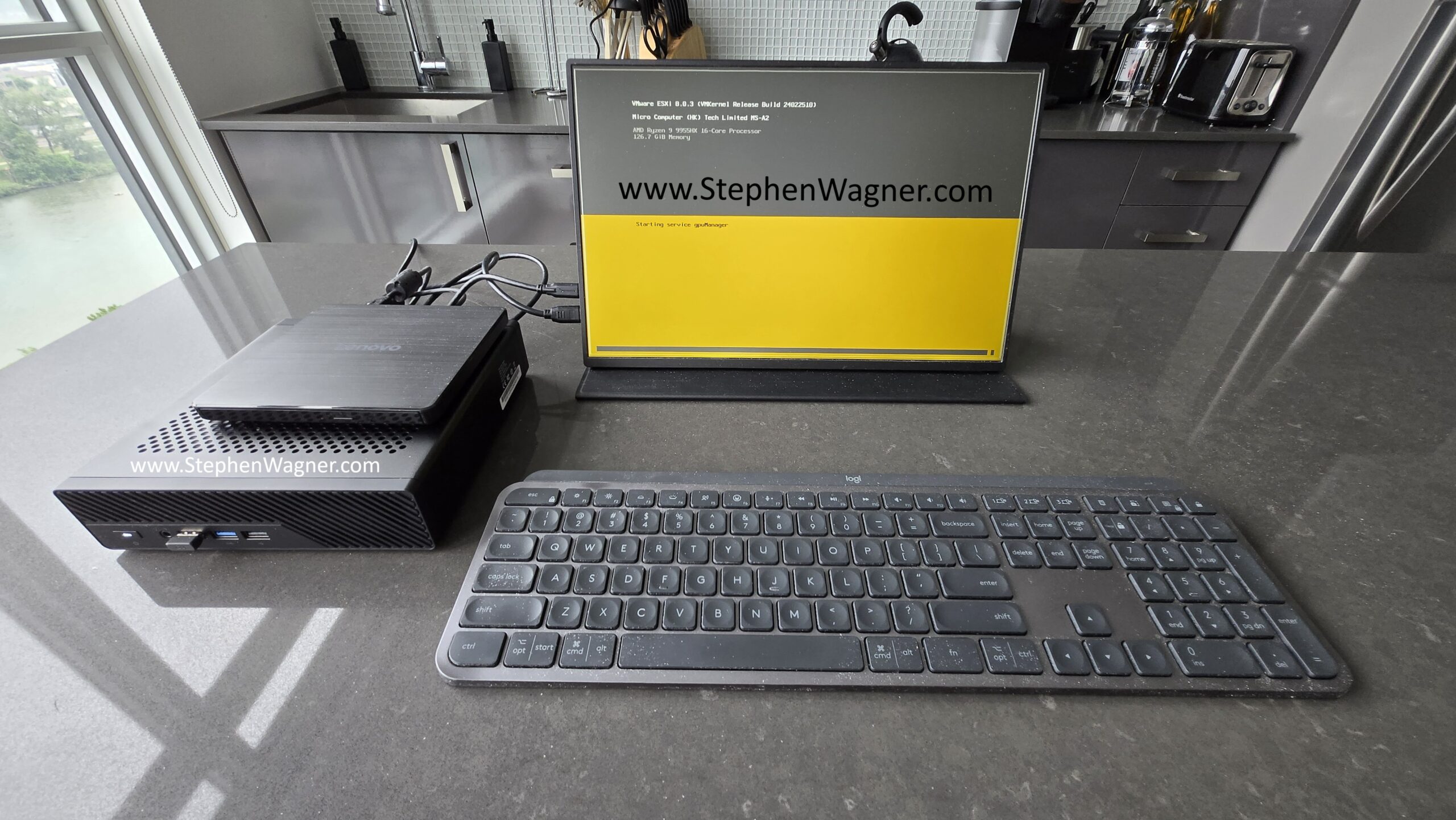
Minisforum MS-A2 running VMware ESX

In my systems, I installed a dual OCuLink PCIe adapter, and enabled bifurcation in the BIOS. This allows us to connect the MS-A2 to external devices using an OCuLink cable.
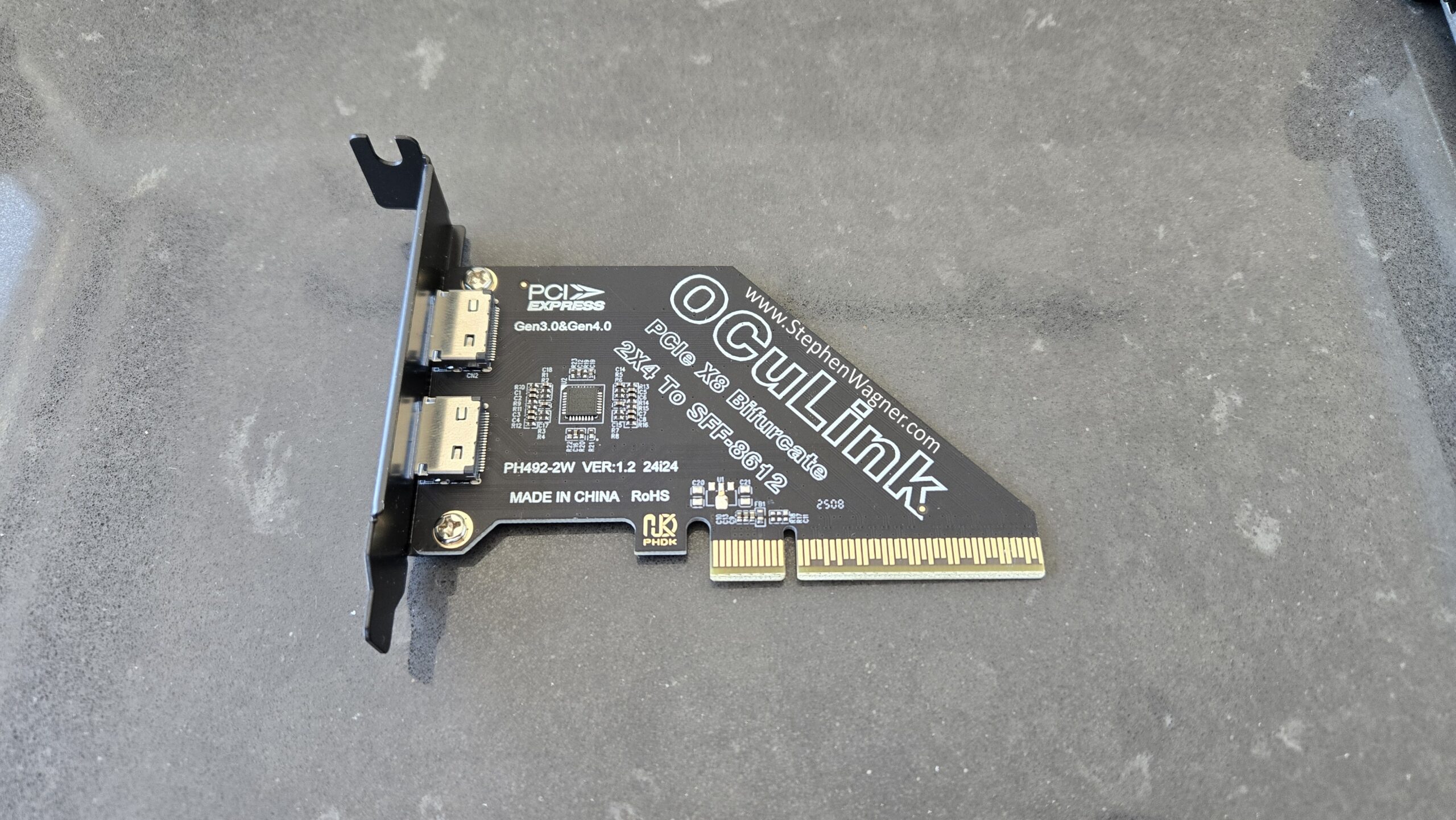
Dual OCuLink PCIe Adapter Card

The card installs nicely, see below for images of the card installed internally, and ports on the rear of the Minisforum MS-A2.
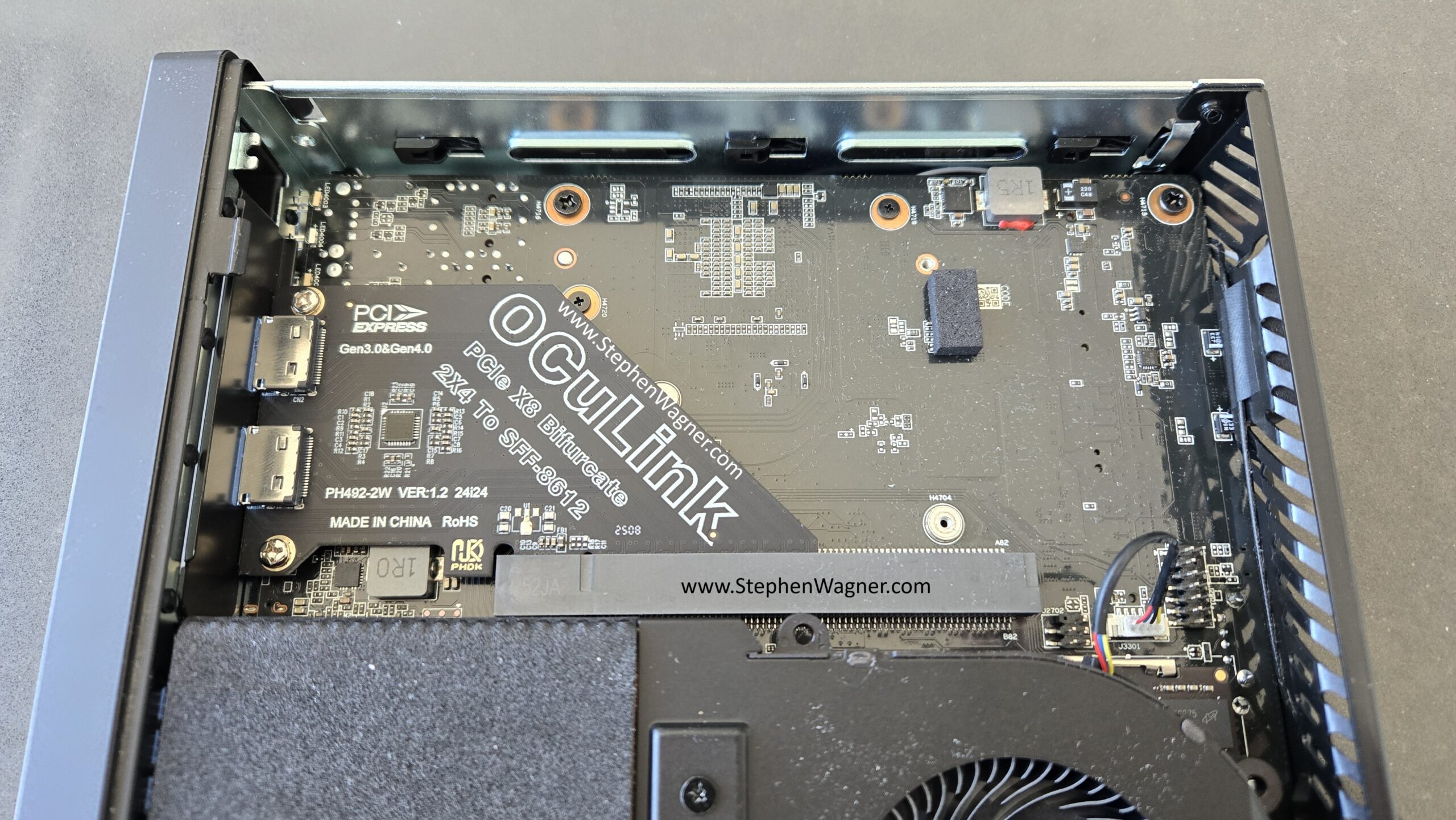
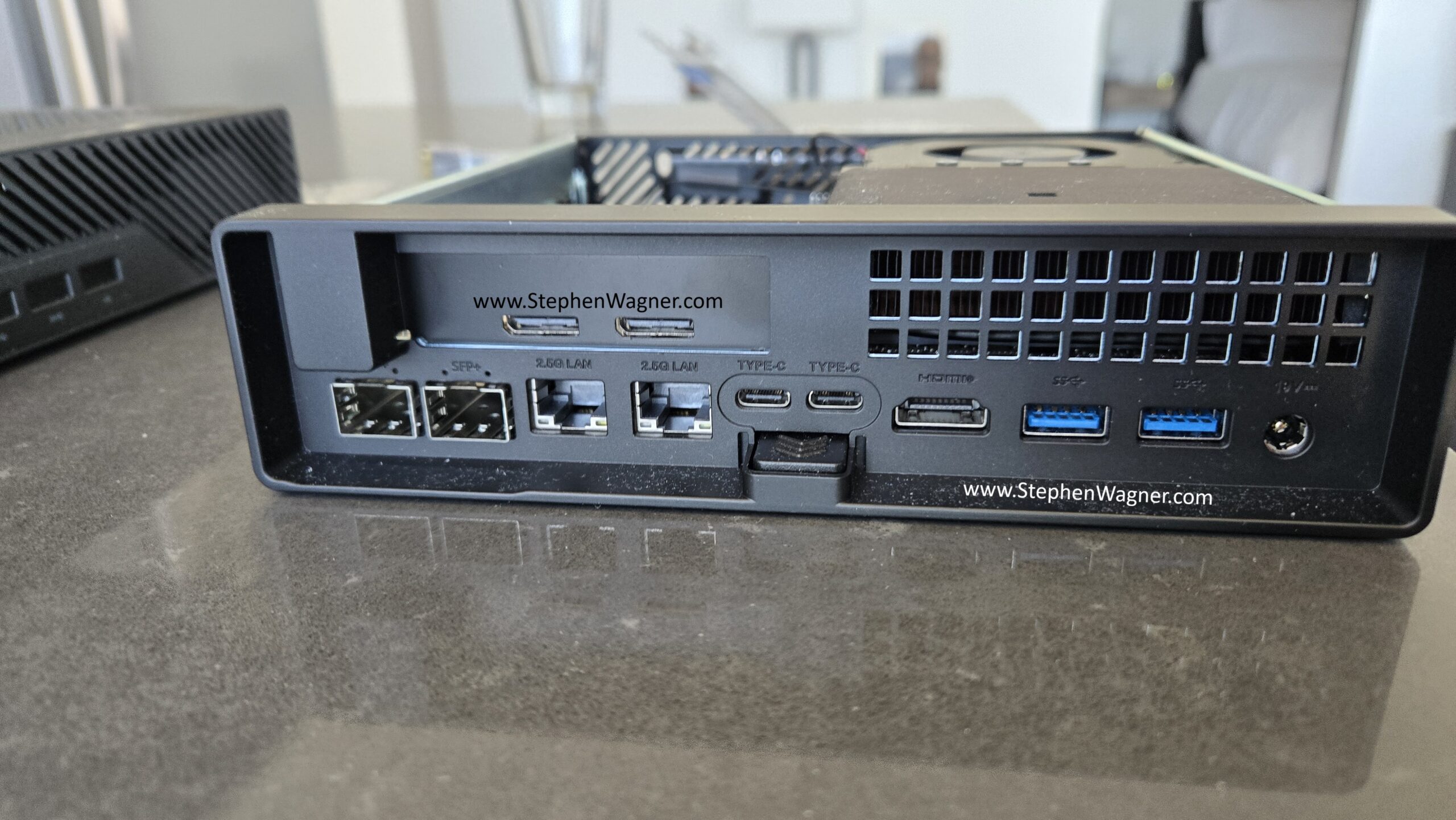
As you can see, it’s a nice clean install.

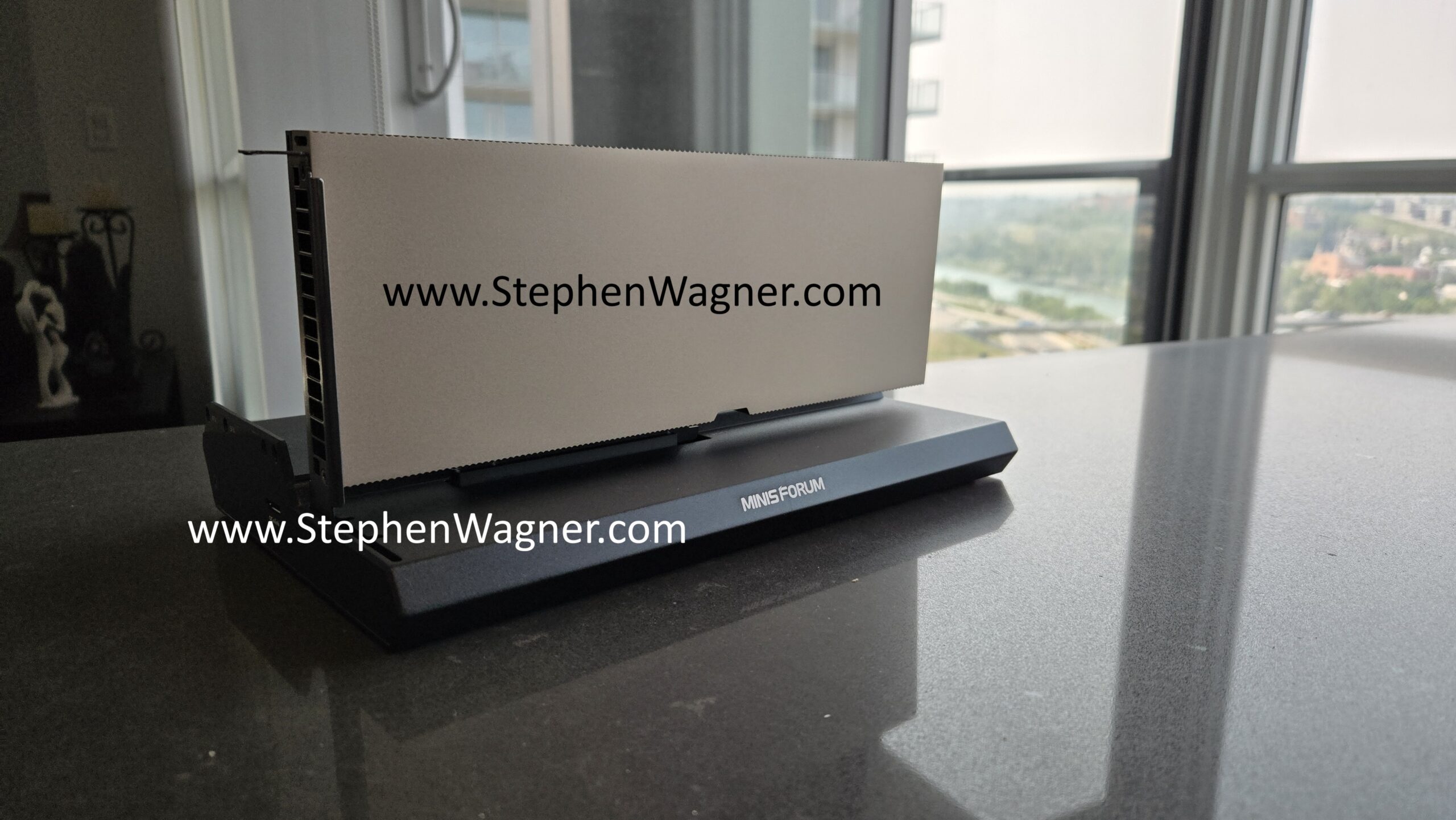
On the other end of the OCuLink cable, I connect the Minisforum DEG1 eGPU dock. Below is a picture of the unit.
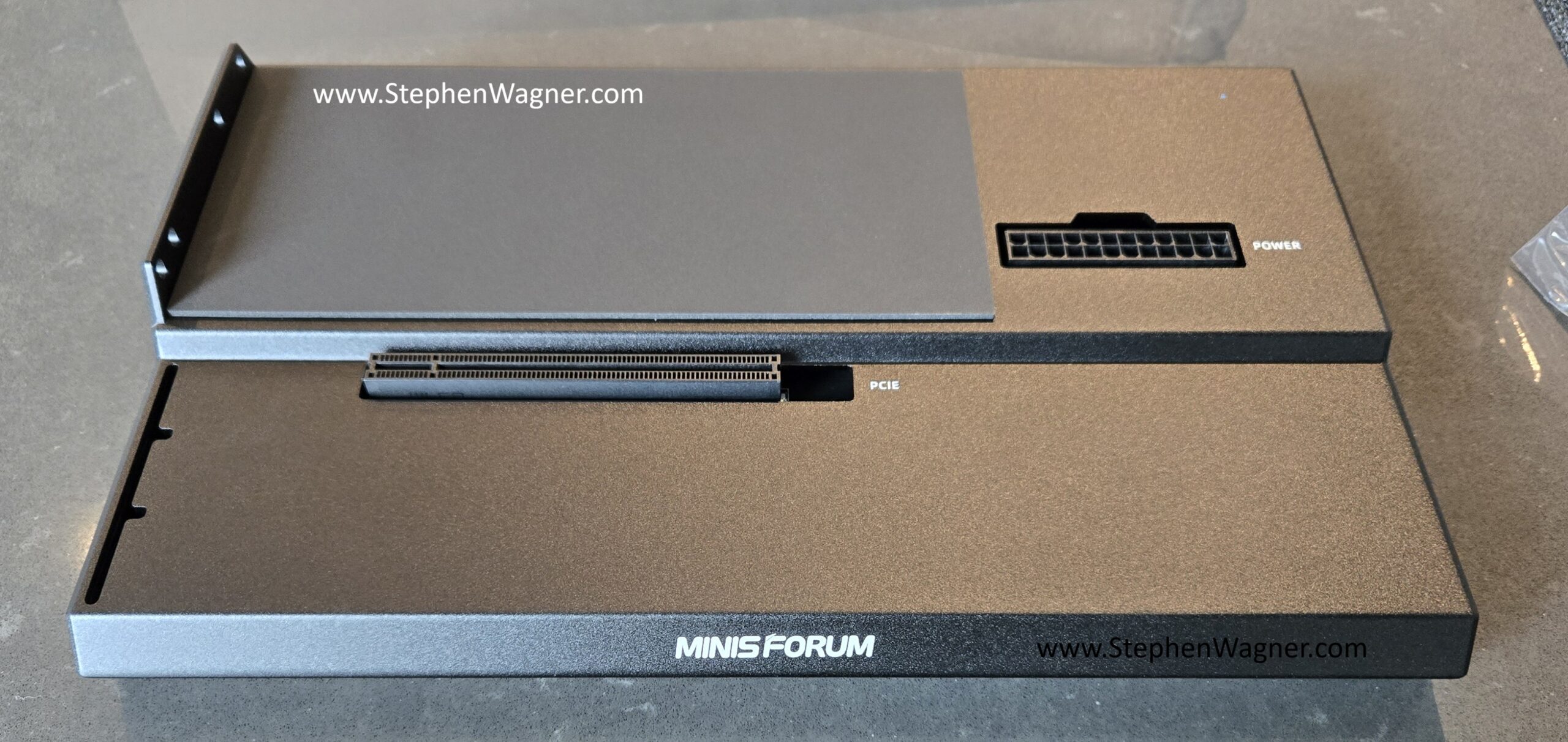
Minisforum DEG1 OCuLink eGPU Dock

You can use an ATX Power supply to power both the DEG1 dock, along with your preferred GPU.

NVIDIA RTX 4500 Blackwell Server Edition Datacenter GPU

In this specific test, I decided to use the new NVIDIA RTX Pro 4500 Blackwell Server Edition Datacenter GPU. This card is built off the NVIDIA Blackwell GPU architecture, has 32GB of GDDR7 memory, consumes 165W, and has a PCIe 5 x16 interface.

Please note:

  • Due to OCuLink being used in this PoC, only 4 lanes will be supplied to the GPU using this configuration.
  • I used a 3D printed air baffle and fans I purchased on eBay to cool the car (as the card is passively cooled).

Installing the card was fairly easy:
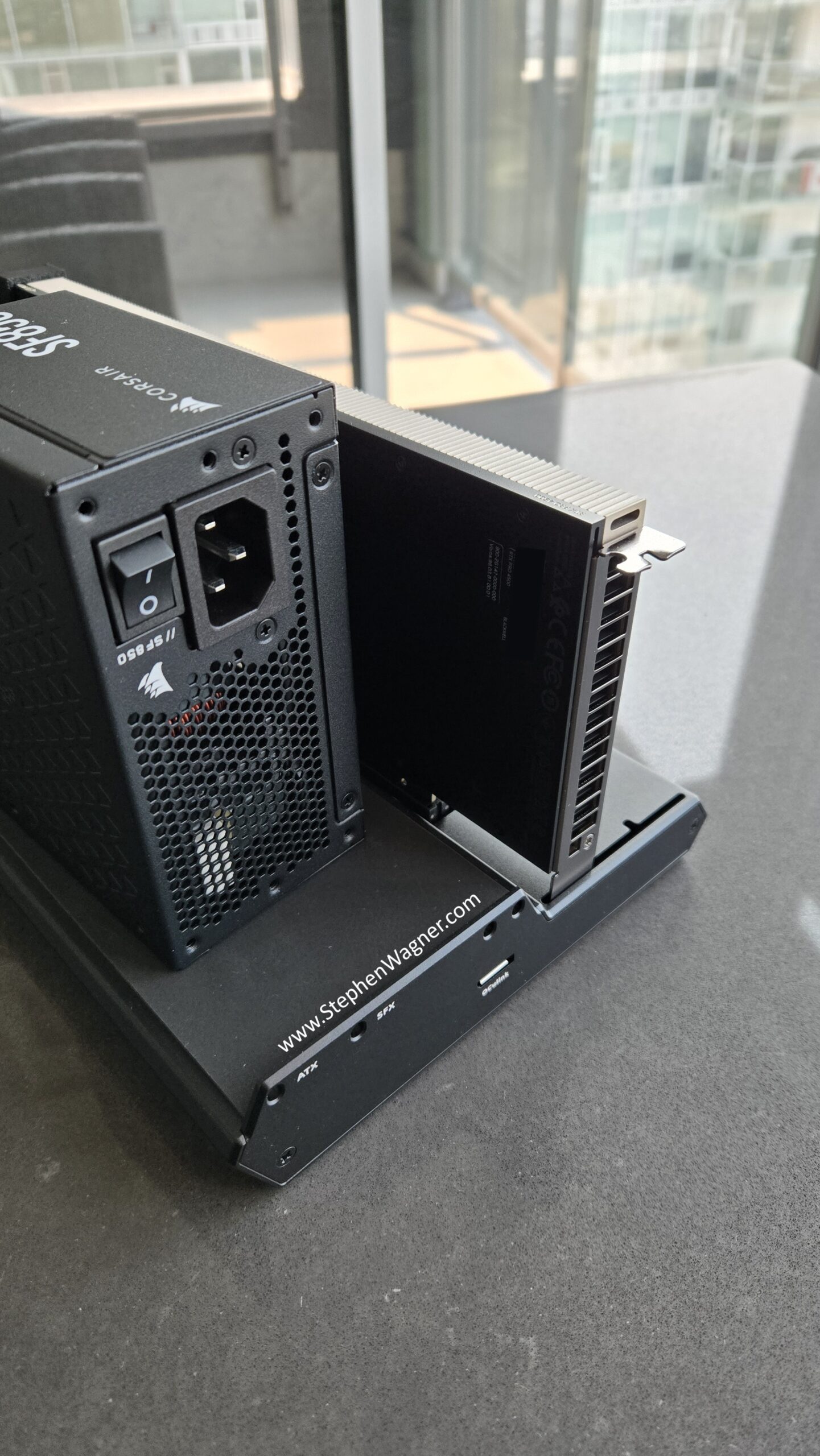
Again, pretty clean and nice looking install.

Moving the DEG1 over to my MS-A2 in my homelab, in excitement I quickly connected it.
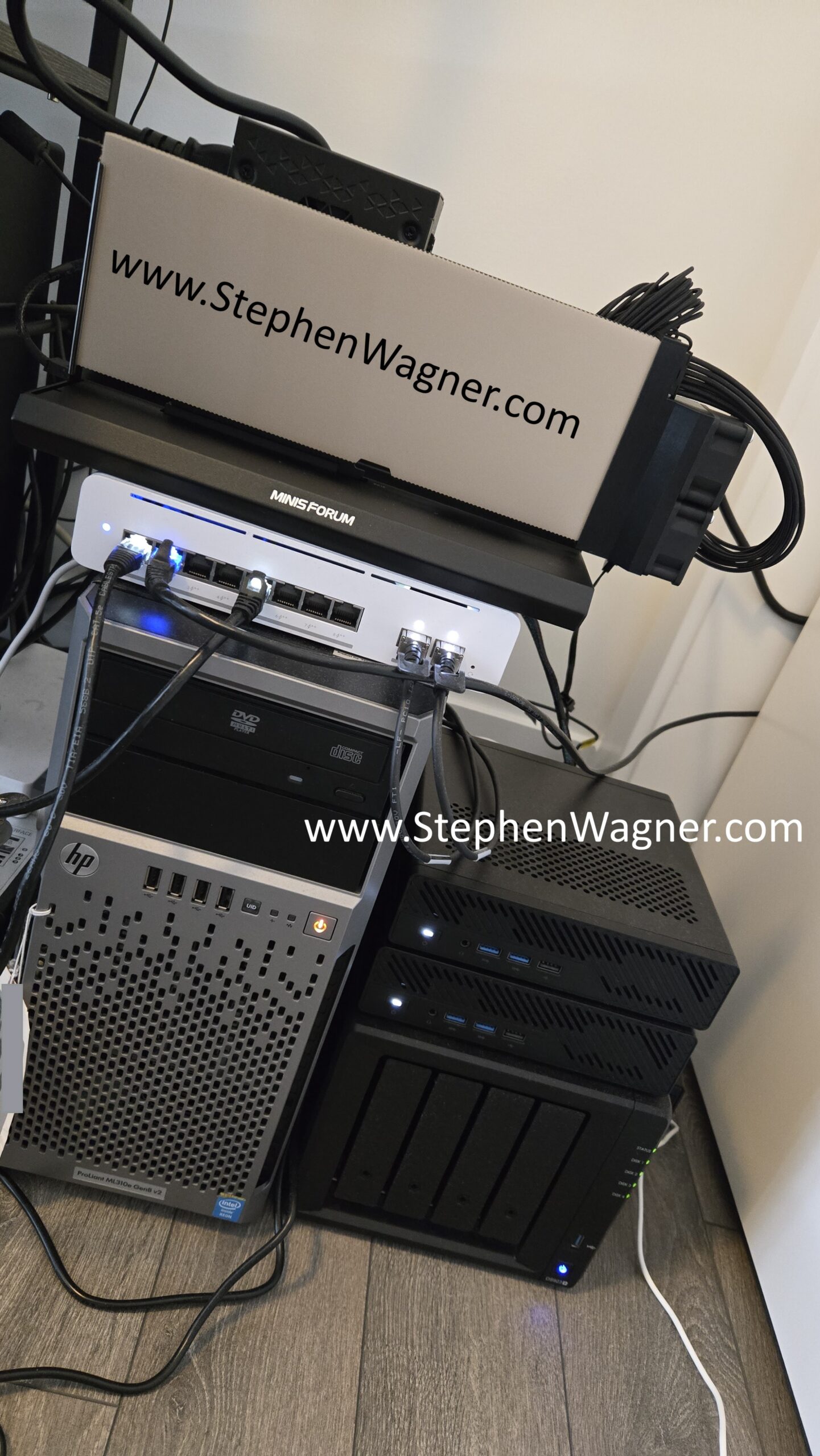
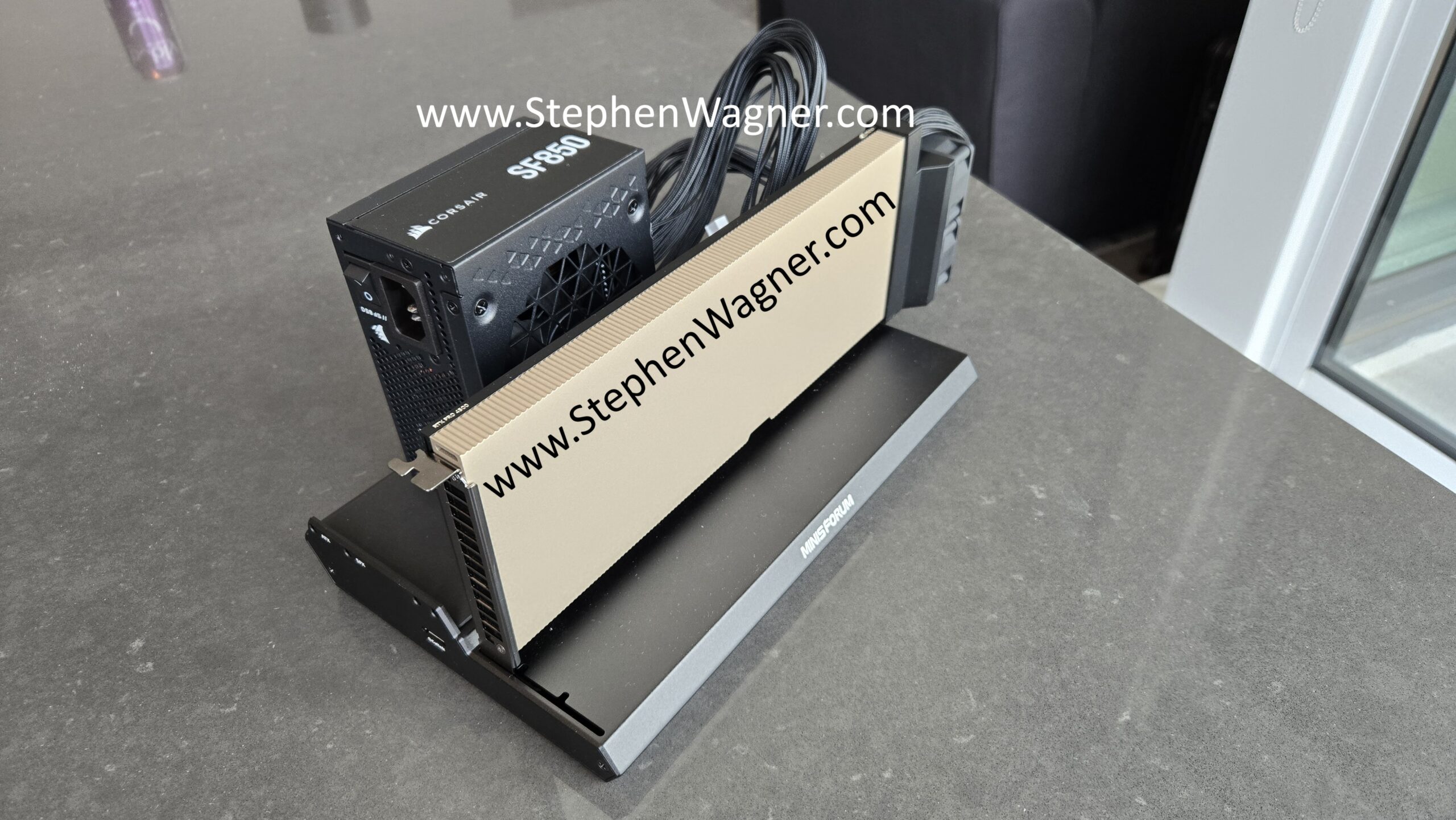
Minisforum MS-A2 with DEG1 OCuLink doc and NVIDIA RTX 4500 Blackwell Server Edition
Minisforum MS-A2 connected to DEG1 OCuLink Dock, with NVIDIA RTX 4500 Blackwell Datacenter GPU

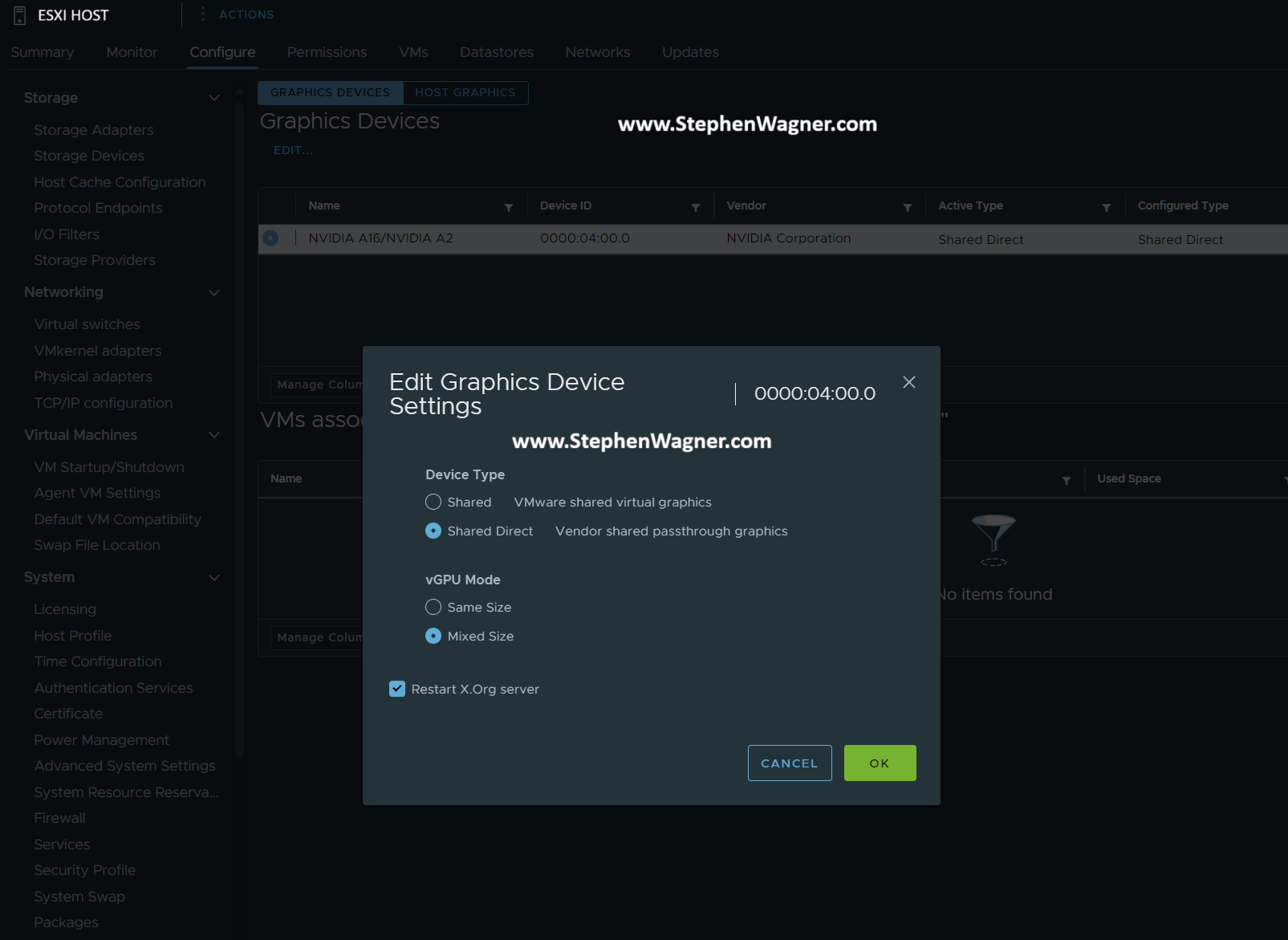
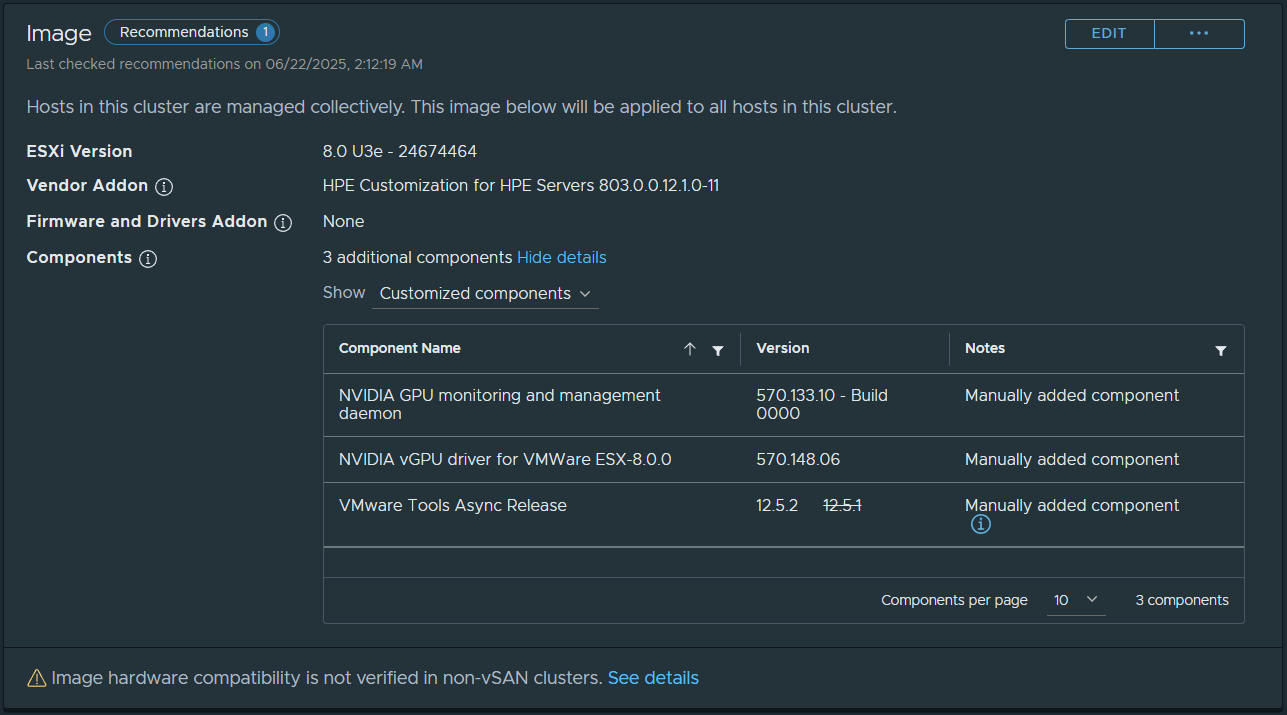
After powering it on and waiting for VMware vSphere ESX to boot, I checked the Graphics Devices section in on the ESX host (I already had the latest NVIDIA vGPU 20.1 drivers in the ESX lifecycle image, so the drivers were present on the host).
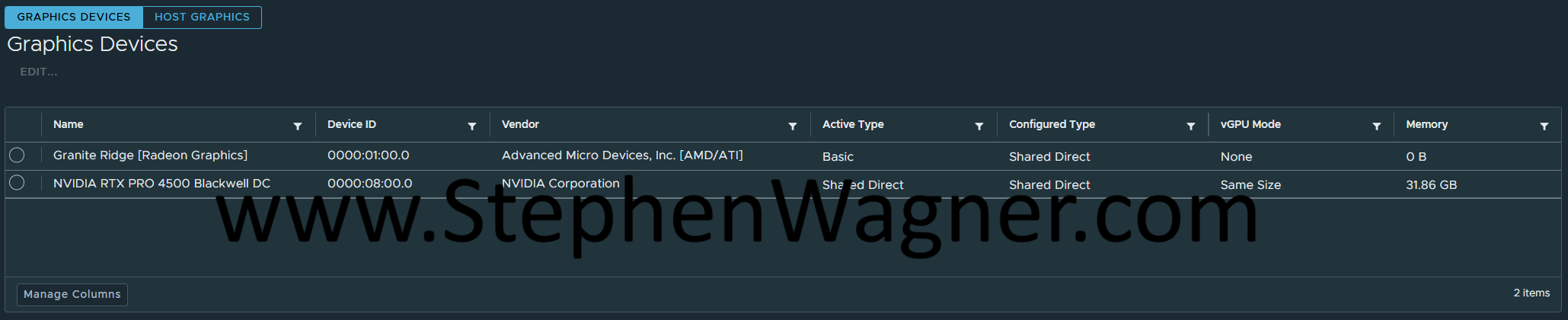
VMware vSphere ESX Graphics Devices with NVIDIA RTX 4500 Blackwell GPU

Confirming that the card was detected and host vGPU drivers loaded, I proceeded to attach a vGPU profile (4Q) to a test VM, disable the vGPU framerate limiter, and powered on the VM. I then enabled SSH, connected to the host via SSH, and ran “nvidia-smi” to query the GPU status.
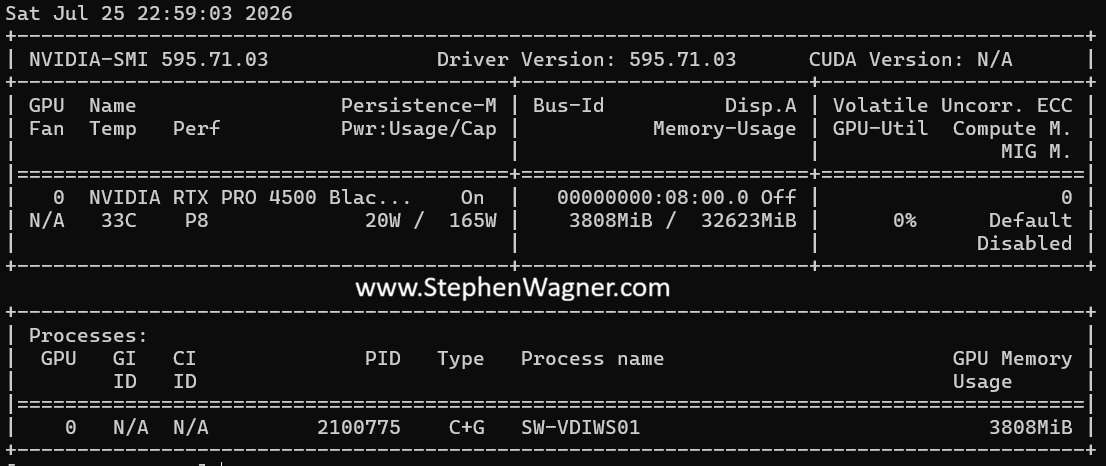
Running “nvidia-smi” using the RTX 4500 Blackwell SE GPU

Testing

I went ahead and used Omnissa Horizon to connect to the VDI VM using Blast. This resulted in a high quality hardware encoded/decoded session using NVENC AV1 as the automatically negotiated encoder.

While running through some normal applications, the temperature fluctuated on the card between 33-38C. Note that the fans I’m using are 12V fans, however they were underpowered during this testing and running at 5V.

Loading up Heaven Benchmark, running a test at 1080p using high setting, I was able to achieve 699fps continuously. During this period, the card showed “GPU-Util” in the 90 percentile, and temperatures raised to 80-83C.

Overall, for a quick proof of concept, this was a great test and I’m super happy all the components worked out together.
Jun 222025
 
Stephen Wagner and Joe Cooper talk about AI Development and Prototyping using NVIDIA vGPU, NIMs, and VDI to delivery high powered AI workstations.

Joe Cooper and I (Stephen Wagner), talk about AI Prototyping and AI Development with NVIDIA vGPU powered Virtualized Workstations.

Using NVIDIA vGPU technology, NIMs (NVIDIA Inference Microservices), and VDI you can enable high powered, private, and secure AI Development Workstations.

These environments can be spun up on your VMware infrastructure using NVIDIA datacenter GPUs, NVIDIA NIMs, and using Omnissa Horizon or Citrix for delivery.

Thanks for watching!

Jun 222025
 

When upgrading VMware ESXi hosts using VMware vCenter, and vLCM (vSphere Lifecycle Management), you may notice a failure to upgrade and remediate with vLCM and vGPU on ESXi.

This error appears in tasks as a general failure. Inside of vLCM when monitoring remediation, you’ll see an error in regards to a service, module, or VIB that is currently in use which blocks the update and/or upgrade.

vGPU and vLCM remediation

Cause

I suspect this is occuring with vGPU release 18.3 (host driver 570.158.02) due to the fact that the host driver has a version change, however the GPU monitoring and management daemon does not (stays at 570.148.06). Since the GPU daemon isn’t touched, the services do not stop, which keeps the NVIDIA ESXi vGPU host driver loaded in the kernel, stopping the vLCM remediation from completeling.

Resolution

I tried a number of different things to resolve this, such as stopping services, re-attempting, then attempting to unload the NVIDIA vGPU kernel driver, however none of these provided a quick fix.

To resolve this issue, I stopped all the NVIDIA services, uninstalled the vGPU host driver and management daemon, restarted the host, checked compliance, and then remediated the host. Remediation completes succesfully.

Steps to perform these actions:

  1. Place the host in maintenance mode
  2. SSH in to the ESXi host
  3. Run the following command to identify the NVIDIA driver and GPU management daemon:
    • esxcli software vib list | grep -i NVD
  4. This will return the NVIDIA VIBs, example below:
    • NVD-VMware_ESXi_8.0.0_Driver
    • nvdgpumgmtdaemon
  5. Stop the NVIDIA vGPU and related services using the following commands (some of these may already be stopped):
    • /etc/init.d/nvdGpuMgmtDaemon stop
    • /etc/init.d/gpuManager stop
    • /etc/init.d/xorg stop
  6. Uninstall the NVIDIA vGPU Host Driver, and Management daemon using the following commands:
    • esxcli software vib remove -n NVIDIA-VMware_ESXi_8.0_Host_Driver
    • esxcli software vib remove -n nvdgpumgmtdaemon
  7. Reboot the host
  8. Check vLCM Compliance (don’t forget to skip this)
  9. Remediate the host

After performing these steps, you’ll be able to succesfully remediate the host resulting in upgraded NVIDIA vGPU drivers.

Jun 262024
 
vSphere 8U3 vGPU Mixed-Size Profiles

I’m happy to announce today that you can now deploy vGPU Mixed Size Virtual GPU types with VMware vSphere 8U3, also known as “Heterogeneous Time-Slice Sizes” or “Heterogeneous vGPU types”.

VMware vSphere 8U3 was released yesterday (June 26th, 2024), and brought with it numerous new features and functionality. However, mixed vGPU types deserves it’s own blog post as it’s a major game-changer for those who use NVIDIA vGPU for AI and VDI workloads, including Omnissa Horizon.

NVIDIA vGPU (Virtual GPU) Types

When deploying NVIDIA vGPU, you configure Virtual GPU types that provide Workstation RTX (vWS Q-Series), Virtual PC (vPC B-Series), or Virtual Apps (vApps A-Series) class capabilities to virtual machines.

On top of the classifications above, you also needed to configure the Framebuffer memory size (or VRAM/Video RAM) allotted to the vGPU.

Historically, when you powered the first VM, the physical GPU that provides vGPU, would then only be able to serve that Virtual GPU type (class and Framebuffer size) to other VMs, locking all the VMs on running on that GPU to same vGPU type. If you had multiple GPUs in a server, you could run different vGPU types on the different physical GPU, however each GPU would be locked to the vGPU type of the first VM started with it.

NVIDIA Mixed Size Virtual GPU Type functionality

Earlier this year, NVIDIA provided the ability to deploy heterogeneous mixed vGPU types through the vGPU drivers, first starting with the ability to run different classifications (you could mix vWS and vPC), and the later adding support for mixed-size frame buffers (example, mixing a 4Q and 8Q profile on the same GPU).

While the NVIDIA vGPU solution supported this, VMware vSphere did not immediately add support so it couldn’t take advantage of this until the new release of VMware vSphere 8U3, VMware vCenter 8U3, and VMware ESXi 8U3.

To configure different classifications (vWS mixed with vPC), it requires no configuration other than using a host-driver and guest-driver that support it, however to use different sized framebuffers, it needs to be enabled on the host.

To Enable vGPU Mixed Size Virtual GPU types:

  1. Log on to VMware vCenter
  2. Confirm all vGPU enabled Virtual Machines are powered off
  3. Select the host in your inventory
  4. Select the “Configure” tab on the selected host
  5. Navigate to “Graphics” under “Hardware”
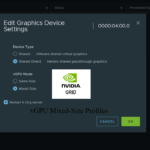
  6. Select the GPU from the list, click “Edit”, and change the “vGPU Mode” to “Mixed Size”
Screenshot showing the "Graphics Properties" for GPU adapters on VMware ESXi 8U3 with the "vGPU Mode" set to "Mixed Size"

Once you configure this, you can now deploy mixed-size vGPU profiles.

When you SSH in to your host, you can query to confirm it’s configured:

[root@ESXi-HOST:~] nvidia-smi -q

    vGPU Device Capability
        Fractional Multi-vGPU             : Supported
        Heterogeneous Time-Slice Profiles : Supported
        Heterogeneous Time-Slice Sizes    : Supported
        vGPU Heterogeneous Mode           : Enabled

It’s supported, and enabled!

Additional Notes

Please note the following:

  • When restarting your hosts, resetting the GPU, and/or restarting the vGPU Manager daemon, the ESXi host will change back to it’s default “Same Size” mode. You will need to manually change it back to “Mixed Mode”.
  • When enabling mixed-size vGPU types, the number of some types of vGPU profiles may be reduced vs running the GPU in equal-size mode (to allow other profile types). Please see the additional links for information on Mixed-Size vGPU types inside the “Virtual GPU Types for Supported GPUs” link.
  • Only “Best Effort and “Equal Share” schedulers are supported with mixed mode vGPU. Fixed Share scheduling is not supported.
May 262024
 
NVIDIA vGPU

When using Omnissa Horizon (formerly VMware Horizon), you may note that NVENC offload is disabled when using RDSH with NVIDIA vGPU. This may also affect other VDI and Application Delivery platforms that use RDSH (Remote Desktop Session Hosts) and NVIDIA vGPU (Virtual GPU).

One of the key benefits of deploying NVIDIA vGPU with Omnissa Horizon, is being able to use the NVIDIA NvENC (NVIDIA Encoder) to hardware encode your VDI session. This is also known as H264/H265/HEVC/AV1 offload.

This means that the encoding and compression of the remoted video session is handled by the GPU, instead of the CPU, freeing up resources on the VM guest and host, reducing latency with encoding, and also providing a much better user experience.

The Observation

When deploying NVIDIA vGPU with vApps and Horizon Apps, you’ll note the following in the VMware Horizon Performance Tracker:

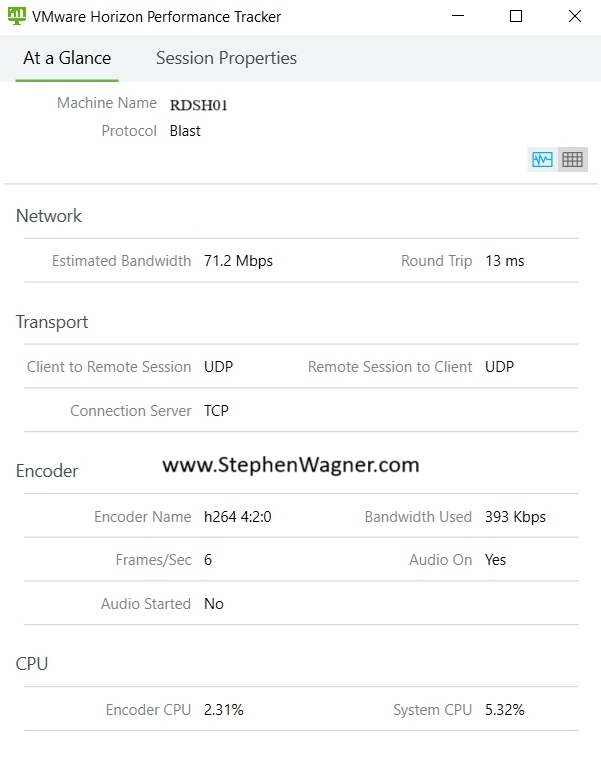
VMware Horizon Performance Tracker on RDSH showing software encoder

You can see above that the “Encoder Name” is using “h264 4:2:0”. This means that the CPU Software Based encoder is handing the encoding of the H264 BLAST Session. While the environment is 3D accelerated, the remoting protocol encoding is not hardware offloaded.

You’ll also note the following:

  • VMware Horizon Agent High CPU Usage
  • “nvidia-smi” on the host and VM does not report the encoder being used

This behavior is as expected due to the inability of RDS session hosts to be able to utilize NvENC. RDSH hosts utilize a software framebuffer for user environment and desktop delivery which cannot be used with NVENC.

Solution and/or Workaround

To work around this limitation, you have the option of using VDI desktops (in this case it would be preferable to use non-persistent Instant Clones) to deploy an “Application Pool” with vGPU enabled VMs.

Note that this is a major change to your solution architecture because pushing applications (and desktops) from Windows 10 or Windows 11 Guest VMs is a 1 to 1 relation, versus RDSH which supports many users to one VM.

Using Horizon, you could then push applications (not desktops) from these vGPU enabled Instant Clones, which would support NVENC and hardware offload, as shown in the example below:

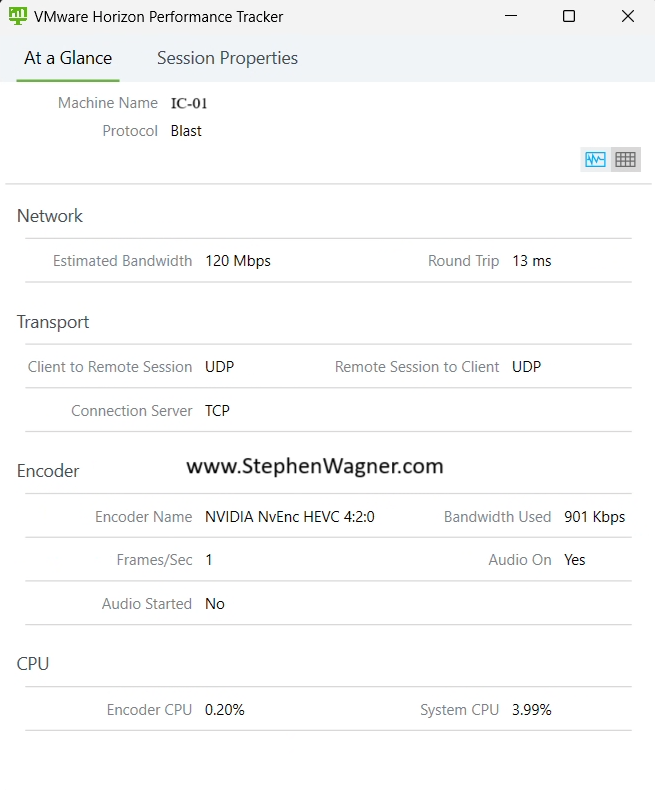
VMware Horizon Performance Tracker showing NVIDIA NvEnc Hardware encoder on instant clone

In the image above, you’ll note that the “Encoder Name” is “NVIDIA NvEnc HEVC 4:2:0” showing us that NvEnc hardware offload and encoding is functioning and being used.

Note, that using this method to deploy Horizon Apps will result in more framebuffer being required, however may be offset since a smaller framebuffer can be used with individual VMs versus a large framebuffer being assigned and attached to an RDSH host.