When deploying Windows 11 with Omnissa Dynamic Environment Manager (Omnissa DEM) you may experience blank, missing, or ghost icons when pinning AppX packages to the Taskbar, such as Calculator, the Snip tool, or other AppX packages.
AppX packages are a newer style software package commonly used with Windows 8, Windows 10, and Windows 11. In newer feature releases of Windows 11, we are seeing these AppX packages replacing common applications such as Calculator, Paint, the Snip tool, and Windows Terminal from the traditional command prompt.
These new AppX packages are deployed to the Windows install as AppX Provisioned Packages, which then get provisioned to the user space when the user profile is created.
The Problem
When using Omnissa Dynamic Environment Manager (formerly known as VMware Dynamic Environment Manager), with non-persistent VDI, every time a user logs in they get a new profile, which DEM then imports their user settings which can include AppData, files, registry, and other settings that create the appearance of profile persistence.
What Omnissa DEM is actually doing is called “User Settings Persistence”.
Because a new profile is created at each log in, the AppX packages deployed in to userspace do not persist, and must be provisioned on every login. Because of this process, if a user has AppX packages pinned to their taskbar, the icon is not available, therefore resulting in a blank icon.
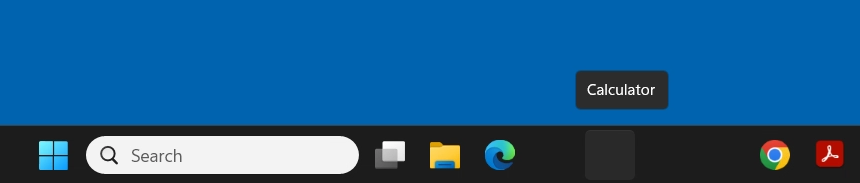
This is not ideal.
The Fix
To resolve this issue, when prepping your gold image and snapshot for deployment, after you complete “Finalization” with the OSOT tool, you’ll need to create a folder in the default user profile.
Please Note: You must have all the appropriate DEM configuration files deployed for Windows 11 (including Start Menu, Explorer, Taskbar, etc).
To resolve this issue, post-finalization, create the “WindowsApps” folder inside of “C:\Users\Default\AppData\Local\Microsoft\” as seen below:
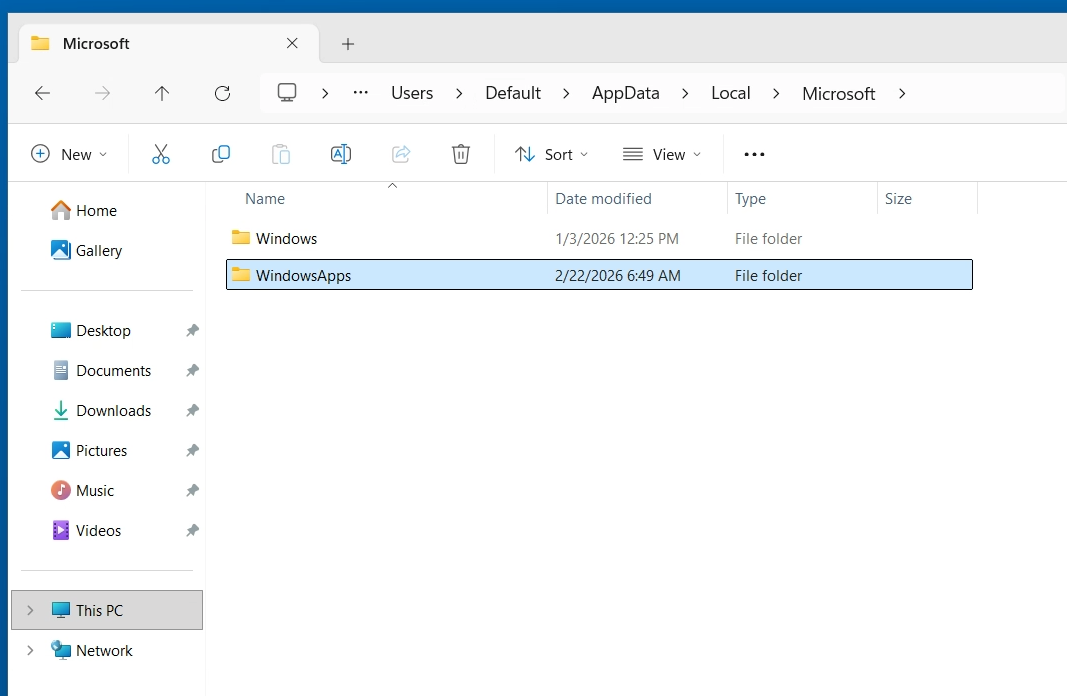
After creating this folder, continue to shutdown your image, snapshot, and push to a Desktop Pool on Omnissa Horizon.
You’ll now notice:
- On user logins, all AppX packages will be immediately visible in the start menu, whereas previously there was a 1-2 minute delay where they would need to be fully provisioned before appearing. You may now notice that ~30 seconds after login, a quick flash of a progress bar will appear, this is Windows provisioning these packages.
- Your pinned AppX package shortcuts on your taskbar will now appear properly, with their applicable icon on subsequent future logins.
I’m speculating that the OSOT tool removes this folder, which delays/removes the linking of AppX packages in new profiles. The steps above corrects this.
A big thank you to “HER_MUN” and Sunil Nair on the Omnissa Community Forums, who helped figure this out:
- https://community.omnissa.com/forums/topic/70223-osot-finalize-breaking-calculator-osot-2503-w11-24h2
- https://community.omnissa.com/forums/topic/71196-windows-11-24h2-slow-appx-deployment-after-login
A big thanks also goes to Daniel Keer for spending 4 hours working through this with me!